Better Pwnagotchi

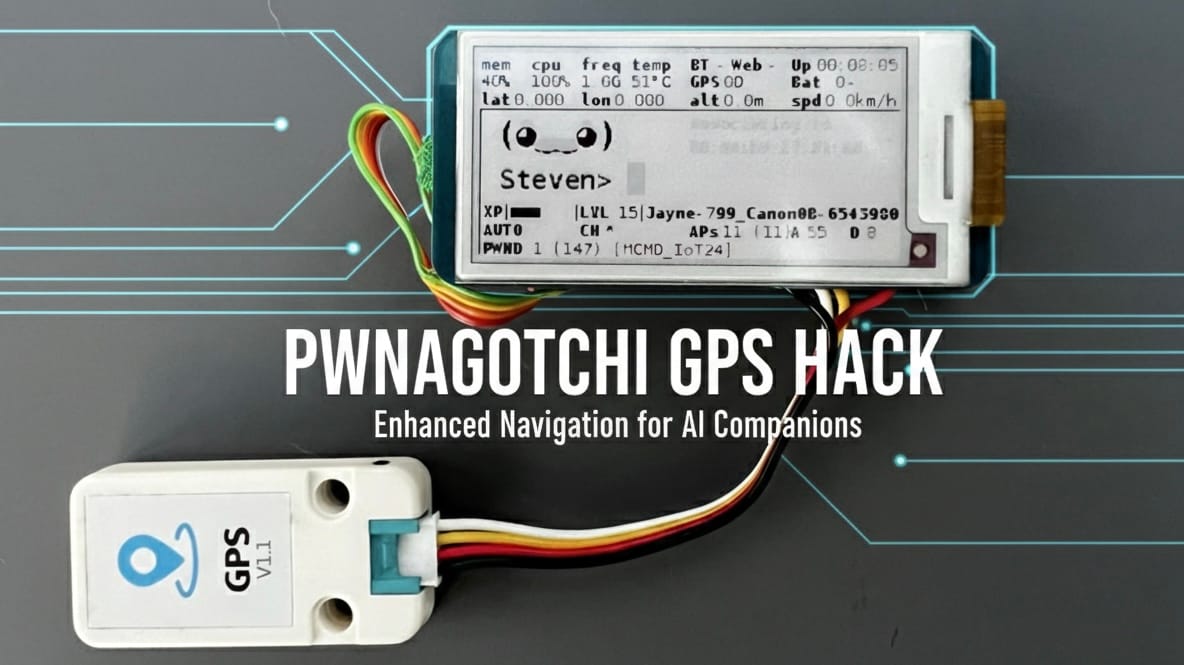
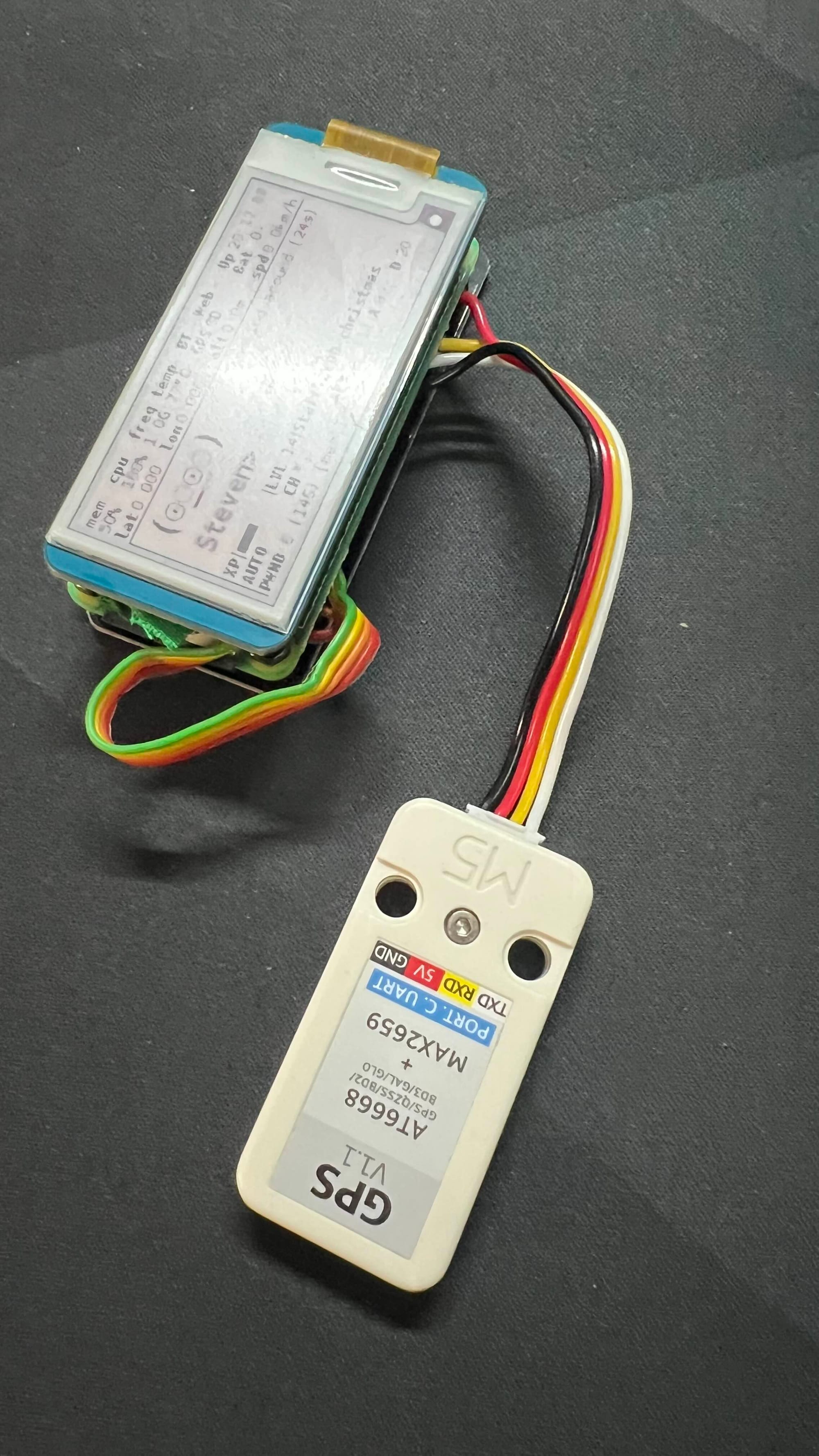
Connecting an M5Stack GPS Unit (typically the AT6668 or AT6558 based modules) via UART is a smart move—it's more power-efficient than USB and keeps your build slim.
Moving Beyond USB: Integrating M5Stack GPS with Pwnagotchi
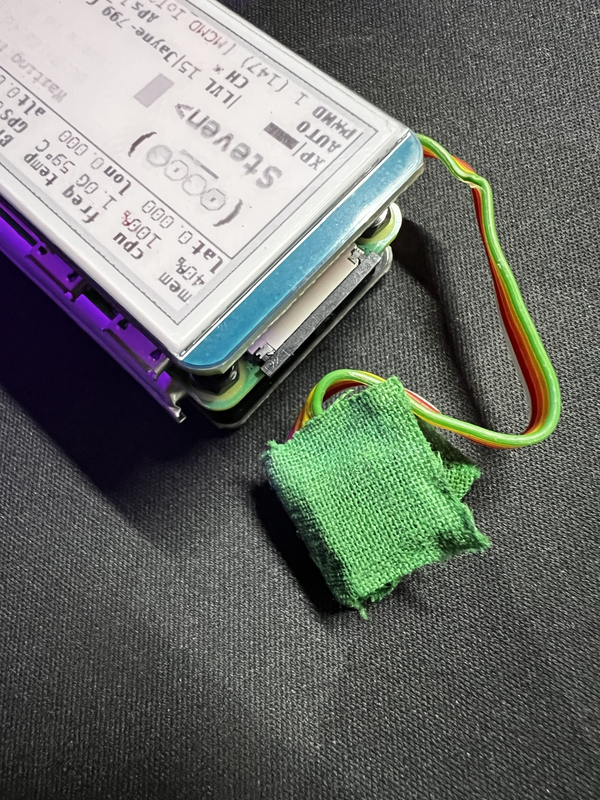
When building a Pwnagotchi, most people start with a simple USB GPS dongle. While it works, it’s far from optimal. I decided to convert my build to use the M5Stack GPS Unit (v1.1) via the RPi Zero 2's GPIO pins for two major reasons:
- Freeing the Data Port: The Raspberry Pi Zero 2 has only one micro-USB data port. By moving the GPS to the UART pins (GPIO), I freed up that USB port for tethering, external antennas, or mass storage.
- Performance & Stability: The M5Stack unit supports a 115200 baud rate, offering a much faster and more reliable data stream compared to standard 9600 baud USB units. This means faster "Time to First Fix" (TTFF) and more accurate geodata for your handshakes.
Here is how I wired it up and configured the software to play nice with the high-speed connection.
1. Hardware Wiring
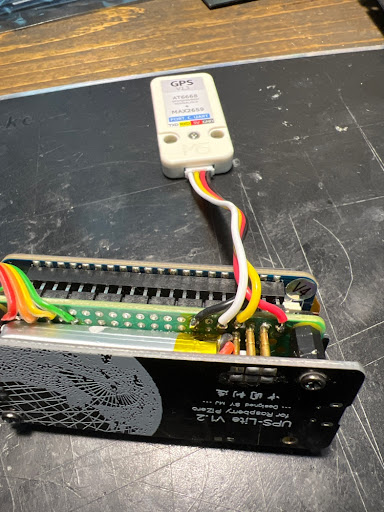
The M5Stack GPS unit uses a Grove-style connector. You’ll need to map these to the Pi Zero 2 GPIO header. Note that we swap the TX and RX lines.
| M5Stack Color | RPi Zero 2 Pin | Function |
| Black | Pin 6 | GND |
| Red | Pin 2 | 5V |
| White (TX) | Pin 10 (GPIO 15) | UART RX |
| Yellow (RX) | Pin 8 (GPIO 14) | UART TX |
2. Preparing the Serial Port
By default, Raspberry Pi OS uses the serial port for a login console. We need to disable this so gpsd can use it.
Clean up the command line:Bash
sudo nano /boot/cmdline.txt
Remove the phrase console=serial0,115200 or console=ttyAMA0,115200. Keep everything on one line.
Add/Update these lines:Plaintext
enable_uart=1
dtoverlay=disable-bt
Note: Disabling Bluetooth ensures the "mini-UART" doesn't throttle our GPS connection.
Edit the boot config:Bash
sudo nano /boot/config.txt
3. Configuring GPSD for 115200 Baud
Standard GPS installations default to 9600 baud. Since we are using the M5Stack's high-speed capability, we need to force gpsd to communicate at 115200.
Modify the configuration to match this:Plaintext
START_DAEMON="true"
USBAUTO="false"
DEVICES="/dev/ttyAMA0"
GPSD_OPTIONS="-n -b"
GPSD_BAUD="115200"
The -b flag is crucial; it prevents the daemon from trying to re-calculate the baud rate, which often causes errors with UART GPS modules.
Edit the GPSD defaults:Bash
sudo nano /etc/default/gpsd
4. Pwnagotchi Plugin Setup
Finally, update your Pwnagotchi’s config.toml so it knows where to look for the GPS data.
Ini, TOML
main.plugins.gps.enabled = true
main.plugins.gps.speed = 115200
main.plugins.gps.device = "/dev/ttyAMA0"
Verification
After a reboot, you can verify your work by running:
Bash
cgps -s
You should see a clean data stream. Because of the 115200 baud rate, you’ll notice the GPS sentences update much more smoothly on your dashboard compared to the old USB method.